Workflow
How the FILHEX ECU file service works
From original File to result File in one Windows app. You read the ECU with your own tool, FILHEX handles the File, you flash the result. Scan is free; you spend 1 Credit only when a Solution Job completes.
- Install Install FILHEX from Microsoft Store on the Windows PC next to your read/write tools. Signed install, automatic updates.
- Workspace Create a Workspace with your email, verify it, sign in. 5 free Credits land in the wallet after verification — no card.
- Scan & Solutions Upload the original File. Scan identifies Brand and ECU and lists the Solutions that apply. Select what you need.
- Process & download Processing is automated. When the job completes, download the result File and flash it with your own tool.
What you see in the app
The Windows app — list, request, download.
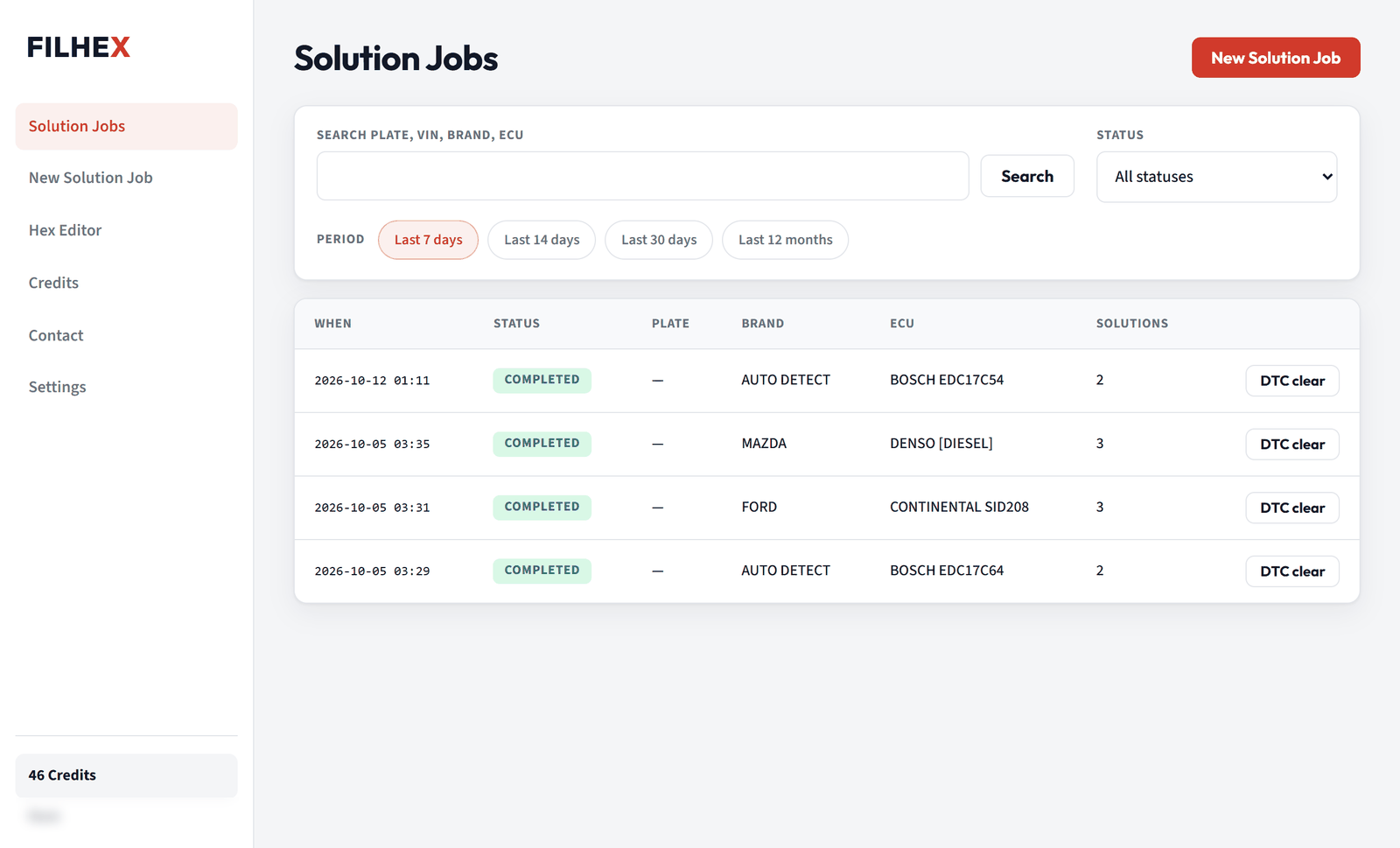
Solution Jobs
Every File request in one Workspace. Status moves through scanning, priced, processing, then completed or failed. If a job fails, its Credit returns to the wallet automatically.
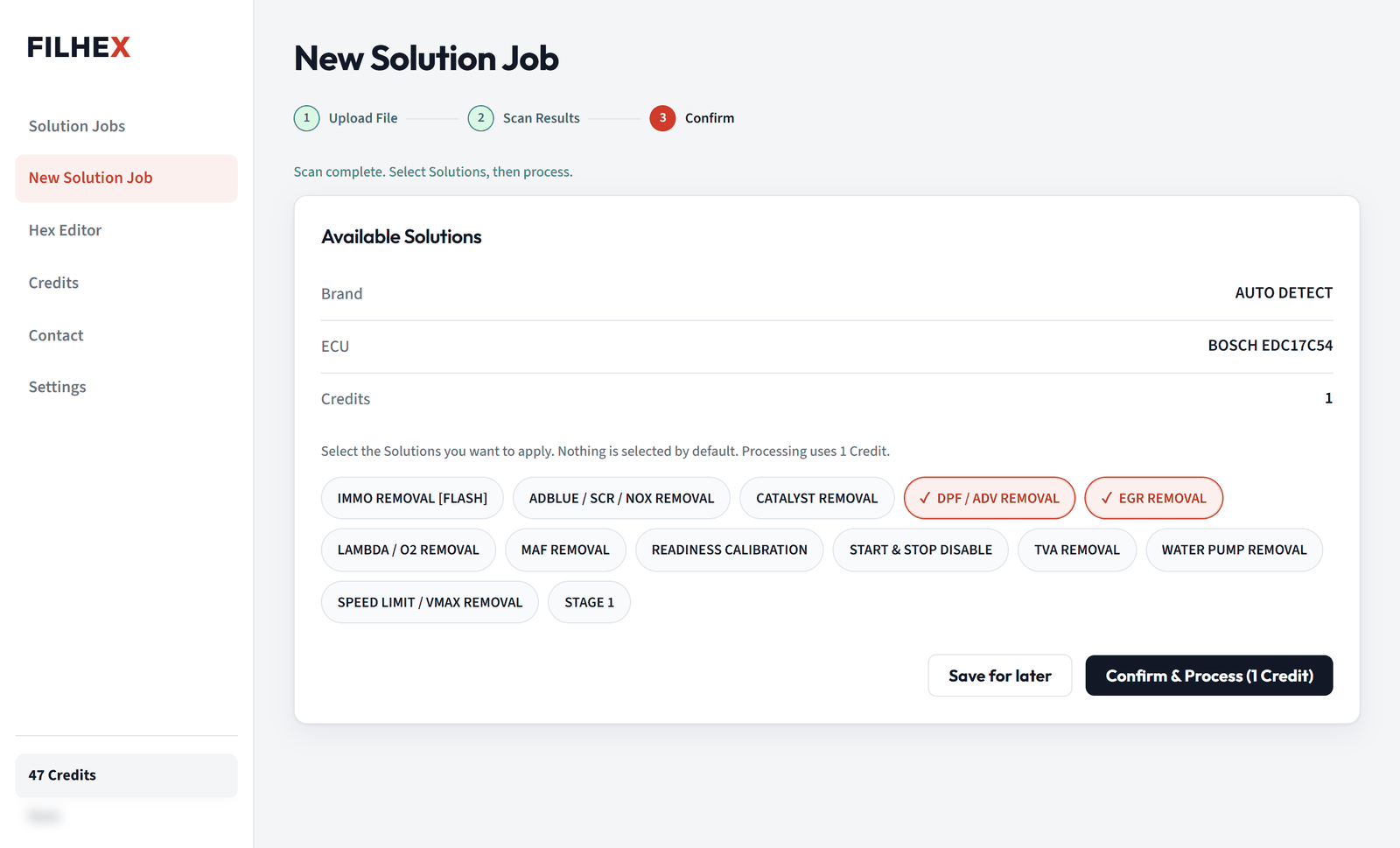
Confirm & process
Upload the original File, let scan confirm Brand and ECU, select Solutions, then confirm.
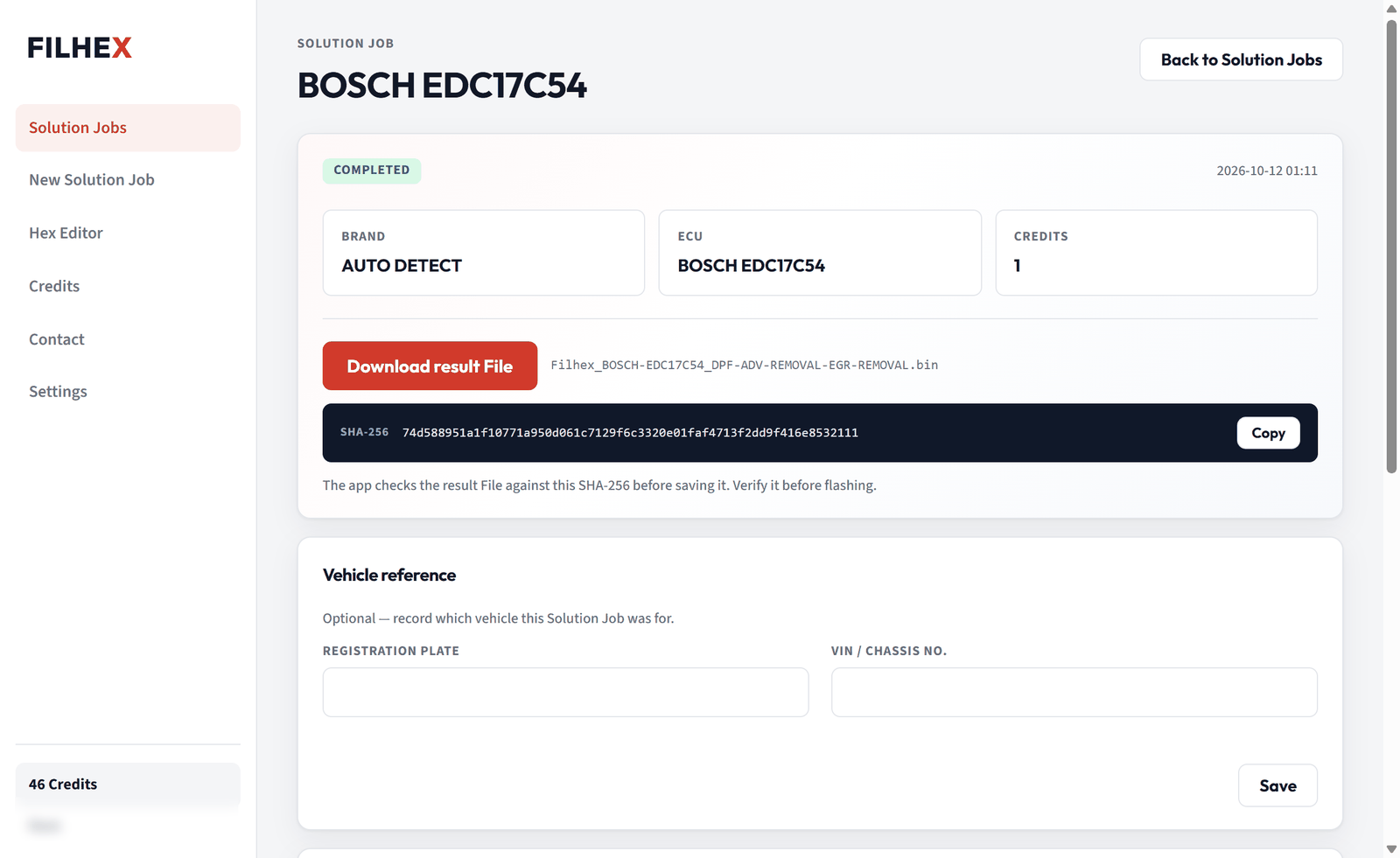
Result File
When the job is completed, download the result File. The job shows a download integrity check, and the original File stays available on the same Solution Job.
Each step in detail
1. Read the ECU and keep the original
FILHEX starts where your read ends. Read the control unit with the tool and method you normally use (OBD, bench, or boot, depending on the ECU) and keep an untouched copy of that read — it is your way back if anything goes wrong on the car. The File you upload to FILHEX should be the complete, unmodified original read of that ECU. Partial or already-modified reads are a common reason a scan comes back with fewer Solutions than the Catalog suggests.
2. Upload and scan
Open New Solution Job in the app, upload the File (up to 16 MB), and let scan run. Scan reads the binary itself and reports the Brand, the ECU, and the exact Solutions that apply to that software version. It never spends a Credit, so you can check a File before you decide anything — including before you buy your first pack. A File that is not supported, or that has no applicable Solutions, is a dead end you learn about before paying anything; the app offers to send that Brand/ECU to support so coverage can be reviewed.
3. Select Solutions
Pick every Solution you need on this File in one go — for example DPF Removal together with EGR Removal, or Stage 1 with Start & Stop Disable. Combining Solutions on one Solution Job does not change the price: 1 Credit covers the whole job, however many Solutions you selected. Choose only Solutions that match the hardware state of the vehicle — a File that assumes a removed part while it is still fitted (or the other way round) is the classic cause of limp mode and regeneration loops. That judgement stays with the workshop.
4. Process — automated
Confirm the job. Every Solution is prepared and maintained by our engineering team; the job itself runs automatically, the app polls status for you, and there is no queue of people to wait for. A Credit is only captured when the Solution Job completes and a result File exists. If the job fails for any reason, the reserved Credit goes straight back to the wallet. At 0 Credits the job is saved as priced and waits in the list — buy a pack and process it when you are ready.
5. Download, verify, flash
Download the result File from the job. The app checks the download against its SHA-256 before saving it, and suggests a filename that names the ECU and the Solutions on it, so the right File lands on the right car. Flash it with the same tool and write method you used for the read. The original File, the selected Solutions, and the result File stay together on the job in your Workspace, so you can come back to any job later and see exactly what was delivered.
6. DTC clear after the job
Need a code gone that scan could not foresee — a sensor that was unplugged during the mechanical work, a module that is no longer on the bus? Open the completed job, start DTC clear, search and select the codes, and download the updated File. It runs on the result File, is free, and can be used up to 3 times per File.
7. Compare in the Hex Editor
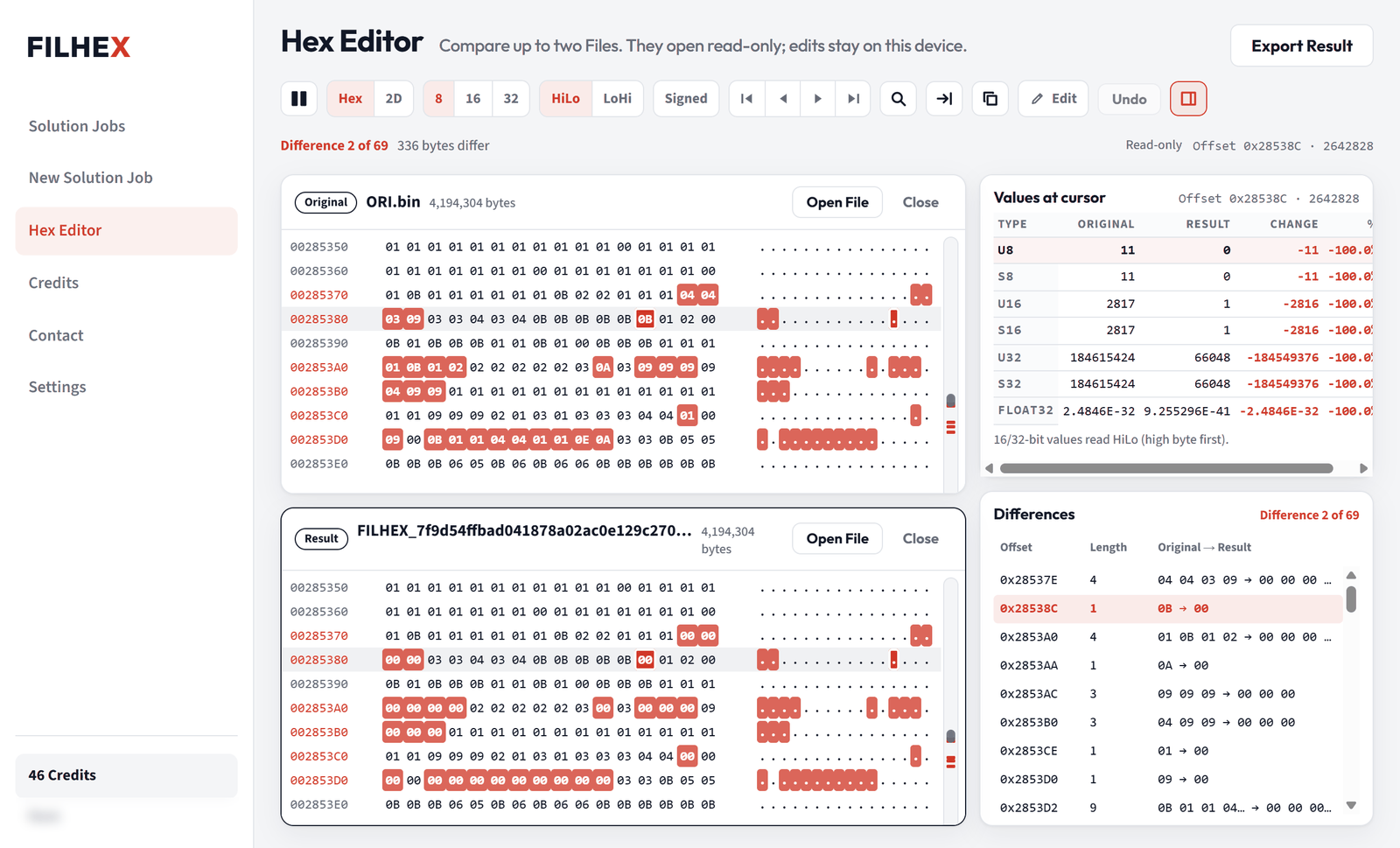
The app includes a Hex Editor built for checking, not for authoring maps. Open the original and the result of any job side by side, jump through the list of differences block by block, read values as 8/16/32-bit numbers or a 2D graph, and search for hex or text. It is the quickest way to see what changed before you write a File to a customer's car. Local byte edits are possible but stay on your PC; FILHEX does not correct checksums on locally edited Files and warns you before you export one.
Credits in one paragraph
1 Credit = 1 processed File. Each new Workspace receives 5 free Credits after email verification. Packs are €5 for 1 Credit, €40 for 10 Credits, €150 for 50 Credits, €200 for 100 Credits — one-time purchases bought in the app by the Workspace Owner, paid by card through Stripe in your browser. Packs stack, Credits never expire, and there is no subscription. Full detail on pricing.
FAQ
Which File should I upload?
The complete, unmodified original read of the ECU, as your read/write tool saved it (up to 16 MB). Keep your own backup of that read. A partial read or a File that was already modified can come back from scan with fewer Solutions than the Catalog lists.
What is free, and when is a Credit spent?
Upload, scan, Catalog browsing, DTC clear and the Hex Editor are free. Scan identifies the Brand and ECU from the binary and lists the Solutions that apply before you commit to anything. A Credit is spent only when a Solution Job completes and the result File is ready; if processing fails, the reserved Credit returns to the wallet automatically.
Can I put several Solutions on one File?
Yes. Select every Solution you need on the same Solution Job — DPF Removal with EGR Removal, Stage 1 with Start & Stop Disable, and so on. One Credit covers the whole job however many Solutions are on it.
How long does processing take?
Processing is automated and the app shows live status for every job — there is no waiting for someone to come online. FILHEX does not publish a turnaround promise; the job list tells you the moment a result File is ready.
How do I flash the result File?
With your own read/write tool, using the same write method you used for the read. FILHEX delivers the File; reading and writing the ECU stays with your hardware, and the decision to flash stays with the workshop.
What is DTC clear and is it included?
DTC clear removes selected diagnostic trouble codes from the result File of a completed Solution Job. It is free, runs on that job's result File, and can be used up to 3 times per File.
What is the Hex Editor for?
Checking a File before it goes on a car: open the original and the result side by side, step through every difference, read values as numbers or a graph, and search bytes or text. It is not a map editor and FILHEX does not correct checksums on locally edited Files.
Next: what the file service covers · ECU tuning files explained · full Solution list · Download FILHEX.
Check your File before you buy.
Install the Windows app and verify your email: 5 free Credits are added to your Workspace automatically.
On your phone, or prefer to sign up first? Create your Workspace online